Session Notes
Updated: August 2026
Table of contents
- Overview
- Initial Setup Checklist
- Signing In
- Dashboard
- Patients
- Appointments
- Session Notes
- Messaging
- Invoices & Receipts
- Store: Gift Vouchers & Treatment Series
- Expenses
- Documents
- Tasks
- Analytics
- Leave & Closures
- Blocked Time
- Notifications
- Settings
- Message Templates
- Patient Portal
- Mobile Apps
- Exporting Your Data
- Things to Set Up Before Going Live
- Patient Status Quick Reference
- Common Questions
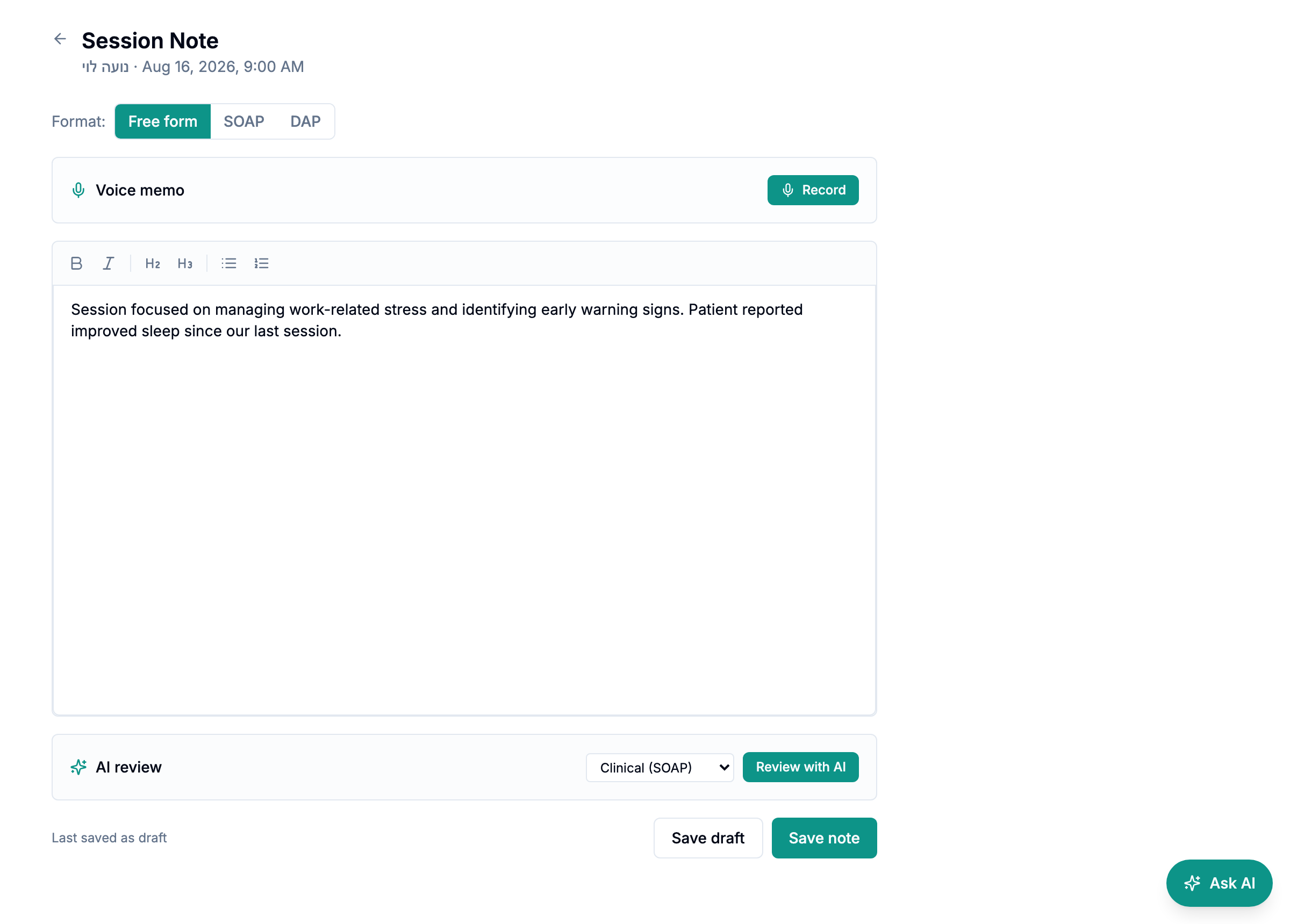
Session notes are strictly private — they are only accessible to you and are never visible to patients, not even in the patient portal.
7.1 Writing a Note
From an appointment's detail page, click Write note (or open an existing note).
You can choose a note format:
| Format | Best for |
|---|---|
| Free-form | Unstructured prose |
| SOAP | Subjective · Objective · Assessment · Plan |
| DAP | Data · Assessment · Plan |
The editor is a rich-text editor (bold, italic, bullet lists, headings are all supported).
7.2 Saving Notes
Notes save automatically as you type. You can also click Save manually. Notes are stored encrypted at rest and are never transmitted to the patient.
7.3 Finding Notes
Open the patient's detail page → Session notes tab to see all notes for that patient in chronological order.
7.4 AI Note Review (Premium)
After typing rough notes, click Review with AI below the editor. Pick a mode:
| Mode | What it does |
|---|---|
| Quick format | Cleans up bullet points/shorthand into proper sentences |
| Clinical (SOAP) | Restructures into Subjective · Objective · Assessment · Plan format |
| Translate / Refine | Translates Hebrew → English with clinical phrasing, or refines English |
The AI returns a side-by-side comparison plus highlighted risk flags, mood, progress markers, homework, and follow-up suggestions. Click Accept & save to use the enhanced version, or Discard to keep your original. Patient names are stripped before sending to AI.
When you accept a review, its tags and risk flags are kept with the note and surface on the patient's detail page (see the AI patient summary below). Each accepted review also records which AI model produced it.
7.5 Voice Memos (Premium)
Voice memos work on the web and in the mobile app.
On the web, the note editor has a Voice memo panel: click Record to capture, then Play to listen back, Transcribe to convert speech to text (auto-detects Hebrew/English) using Whisper, or Delete voice memo to discard.
On the mobile app, tap Record voice memo on the note screen. Recording shows a live timer. Tap Stop to upload. After uploading you can Play, Transcribe to text, or use Voice → Note — a one-tap pipeline that transcribes, runs AI clinical formatting, and opens the diff view to accept.
7.6 AI Patient Summary (Premium)
On any patient's detail page, an AI session summary card shows a concise summary of the last 5 sessions plus key bullet points (themes, progress, ongoing concerns). Auto-regenerates when you save a new session note. Click Refresh to regenerate manually. The card notes which AI model produced the summary.
The same card also surfaces highlights from your accepted AI note reviews: recurring tags appear as chips, and any risk flags are listed with the date of the session they came from. Risk flags are clearly labelled as AI-suggested from your notes, not clinical findings: they are prompts for your judgement, never a diagnosis. A coverage line (e.g. "From 4 of the last 10 notes reviewed with AI") tells you how many recent notes have actually been through review, because only accepted reviews carry highlights: an empty risk row means nothing was flagged in the reviewed notes, not that there is nothing to flag.