Healix
Patients
Updated: August 2026
Table of contents
- Overview
- Initial Setup Checklist
- Signing In
- Dashboard
- Patients
- Appointments
- Session Notes
- Messaging
- Invoices & Receipts
- Store: Gift Vouchers & Treatment Series
- Expenses
- Documents
- Tasks
- Analytics
- Leave & Closures
- Blocked Time
- Notifications
- Settings
- Message Templates
- Patient Portal
- Mobile Apps
- Exporting Your Data
- Things to Set Up Before Going Live
- Patient Status Quick Reference
- Common Questions
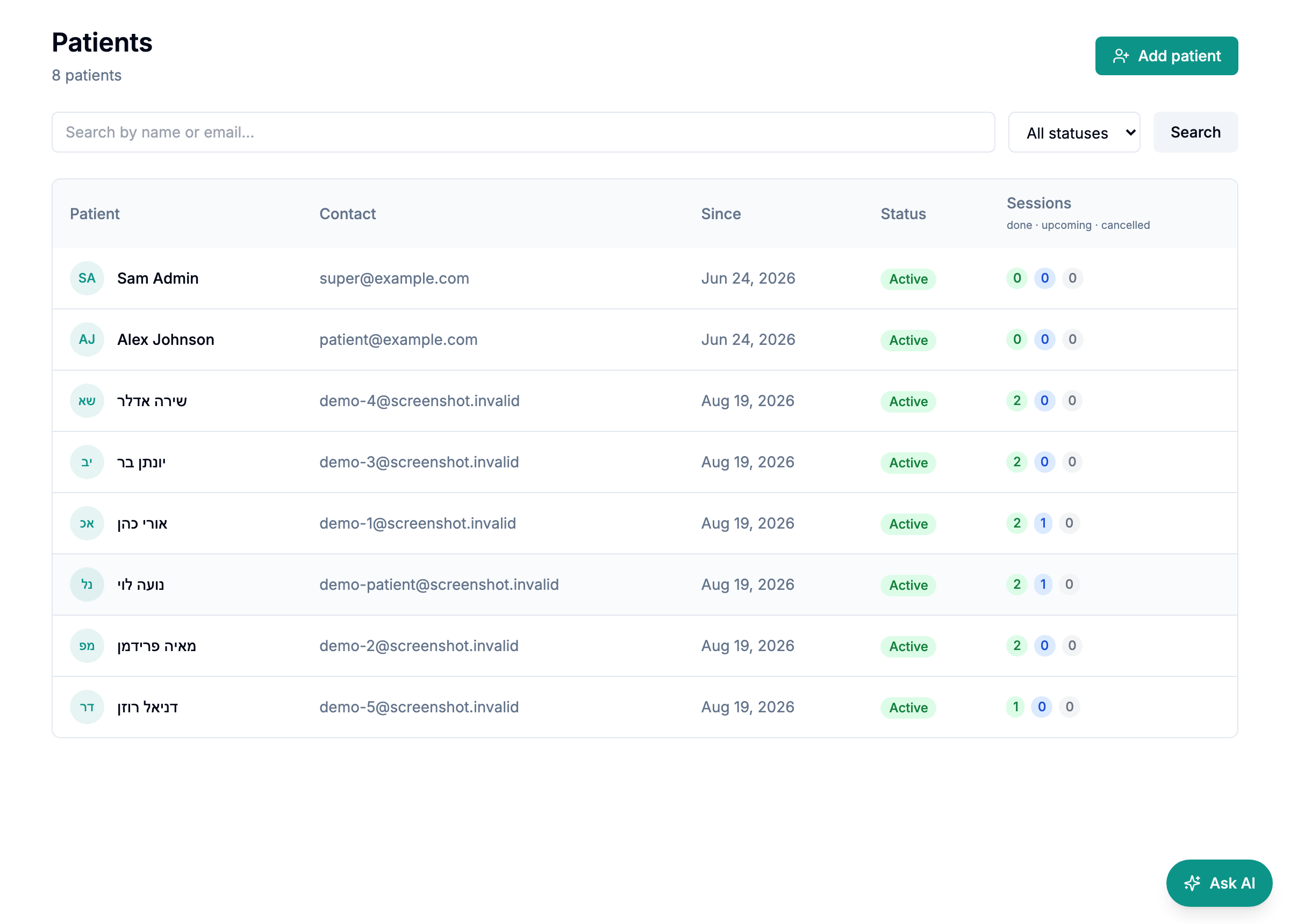
5.1 Patient List
Patients shows all your patients. You can filter by status using the tabs at the top:
| Status | Meaning |
|---|---|
| Active | Currently in treatment — default view |
| Inactive | Treatment paused (e.g. on a break or waiting list) |
| Discharged | Treatment formally ended |
| Archived | Removed from active use; records are preserved but hidden |
| Pending | Self-registered via the public form, awaiting your approval |
5.2 Adding a Patient
Click Add patient and fill in:
- First name and last name (required)
- Email — needed if the patient will use the portal
- Phone — needed for WhatsApp notifications
- WhatsApp opt-in — tick this if the patient has agreed to receive WhatsApp messages
- Date of birth, gender, address (optional)
- Notes — internal notes visible only to you
5.3 Patient Detail Page
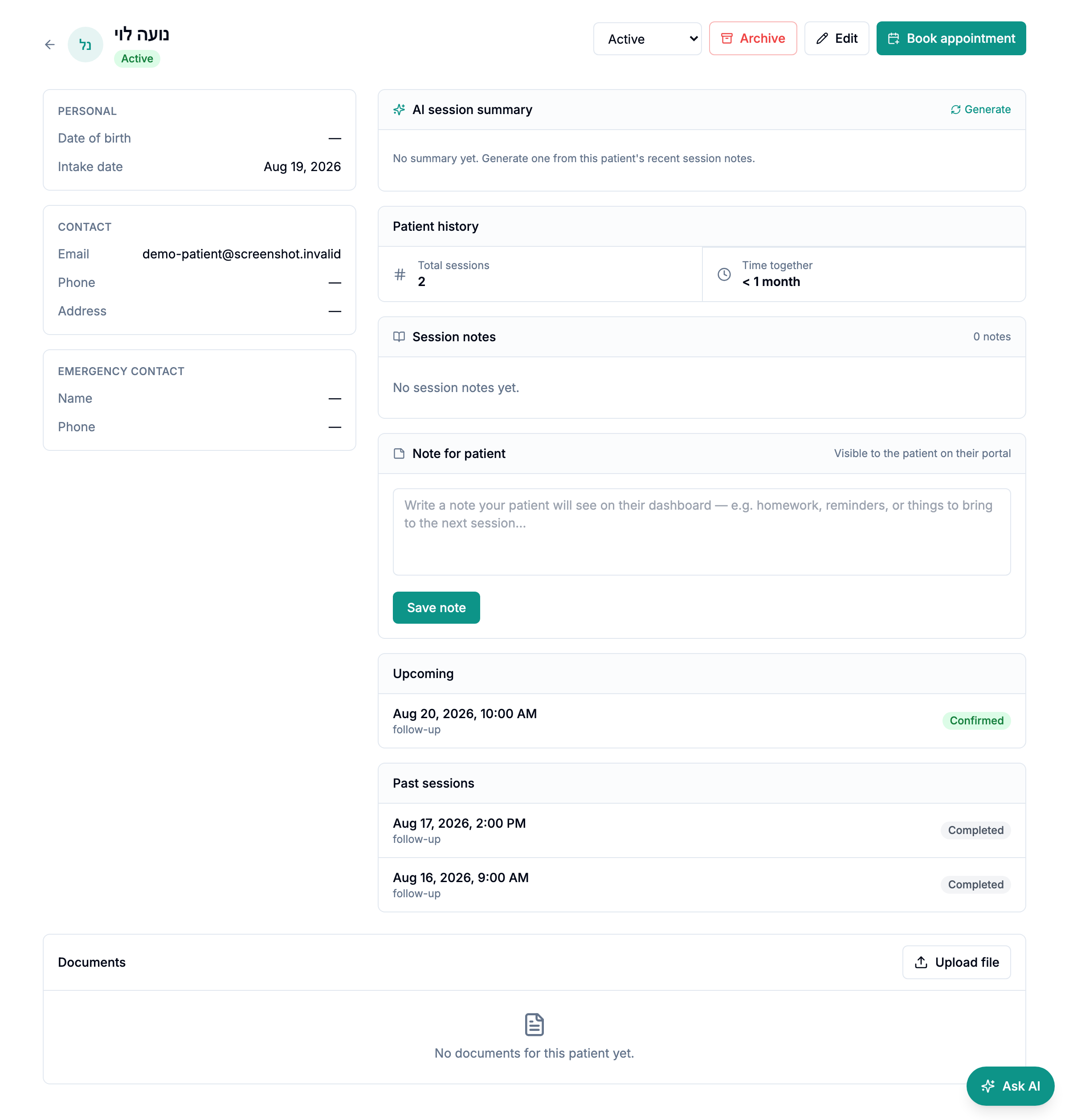
Clicking a patient's name opens their detail page, which shows:
- Profile — demographic and contact information
- History — total sessions, last appointment, first appointment
- Appointments — their full appointment history
- Session notes — your private clinical notes (never visible to the patient)
- Invoices — all invoices and receipts
- Documents — files shared with this patient
- Messages — the messaging thread
5.4 Patient Statuses
Change a patient's status from their detail page using the Status dropdown.
- Active → Inactive: treatment paused. Patient still receives notifications by default.
- Active → Discharged: treatment ended. Notifications off by default (configurable in Settings).
- Inactive / Discharged → Active: treatment resumed.
- Archiving: go to the patient's detail page → Archive patient. This is a permanent action — it requires a confirmation step and cannot be undone from the UI. Archived patients remain in the database for compliance purposes.
5.5 Approving Pending Patients
When a patient self-registers via the public /register form, they appear in the Pending tab with a PENDING status. From the Patients → Pending page, you can:
- Approve — activates their account and sends an invite email with a link to set their password
- Reject — removes the registration