Invoices & Receipts
Updated: August 2026
Table of contents
- Overview
- Initial Setup Checklist
- Signing In
- Dashboard
- Patients
- Appointments
- Session Notes
- Messaging
- Invoices & Receipts
- Store: Gift Vouchers & Treatment Series
- Expenses
- Documents
- Tasks
- Analytics
- Leave & Closures
- Blocked Time
- Notifications
- Settings
- Message Templates
- Patient Portal
- Mobile Apps
- Exporting Your Data
- Things to Set Up Before Going Live
- Patient Status Quick Reference
- Common Questions
9.1 Automatic Invoices
When you mark an appointment as complete, the system automatically creates a Draft invoice with:
- The patient's custom rate (if set) or your default appointment rate
- Discount applied (if the patient has a discount percentage)
- Tax (BTW) calculated from your default tax rate
- Invoice date set to the appointment date
- Due date set to today
- A line-item description from your Default session description setting (or טיפול / "Therapy session" by the patient's language when unset), with the discount shown localized (e.g. טיפול (10% הנחה))
While an invoice is still a Draft, you can edit the line-item wording directly on the invoice page — click the pencil next to the description, adjust the text (e.g. to match insurer requirements), and save. Once an invoice is sent, paid, or voided it is an issued document and can no longer be changed. Every edit is recorded in the audit log.
9.2 Manual Invoices
Go to Invoices → New invoice to create one manually. At the top of the form you'll see two modes:
- Patient — bill a patient in your system (their rate auto-fills)
- Custom recipient — bill someone outside your patient list (insurance company, institution, etc.)
| Field | Description |
|---|---|
| Patient (patient mode) | Who is being billed — selecting a patient auto-fills their rate |
| Recipient name (custom mode) | Name of the recipient (e.g. "Acme Insurance Ltd.") |
| Recipient email (custom mode) | Email address for sending the invoice |
| Document language (custom mode) | English or עברית — the language of the PDF for this recipient (defaults to English). Patient invoices don't need this: they follow the patient's language automatically. |
| Line items | Description, quantity, unit price |
| Tax (BTW) | Pre-filled from your settings; editable per invoice |
| Currency | Defaults to your practice currency |
| Due date | Defaults to today; editable |
| Notes | Optional notes |
The form shows a live breakdown: subtotal + tax = total (all amounts rounded to whole numbers).
Custom recipient invoices appear in the invoice list with the recipient name in place of a patient name. You can send, mark as paid, and void them exactly like patient invoices.
9.3 Invoice List
Invoices are displayed by month, with arrows to move between months (previous / next). At the top:
- Sent / Paid / Draft summary cards showing totals — click a card to filter the list
- Search by patient name or invoice number (searches across all months)
9.4 Sending an Invoice
From the invoice detail page, click Send invoice. This:
- Changes the status to
SENT - Emails the invoice details to the patient (using your configured template)
The patient can view the invoice in their portal.
9.5 Recording Payment
When a patient pays, record it on the invoice. There are two paths:
From a SENT invoice: Click Record payment and enter payment date, method, and reference.
From a DRAFT invoice (Paid Directly): If the patient paid at the session (cash, card, etc.) and you don't need to email the invoice, click Paid Directly. This skips the send step and goes straight to PAID.
Payment methods: Cash, Card, Bank transfer, Check, Bit, PayBox.
The payment form also has a Gift voucher code field: enter a monetary voucher's code to pay the invoice from the voucher's balance instead of picking a method (see the Store).
9.6 Voiding an Invoice
For incorrect invoices, click Void. This opens a confirmation page warning that voiding is permanent before it takes effect. Voided invoices are marked clearly and are no longer actionable.
9.7 Invoice Statuses
| Status | Meaning |
|---|---|
| Draft | Created but not yet sent |
| Sent | Emailed to patient, awaiting payment |
| Paid | Payment recorded |
| Overdue | Due date passed, not yet paid |
| Void | Cancelled / incorrect |
9.8 PDF Download
Every invoice and receipt can be downloaded as a professional PDF. Click Download PDF on the invoice detail page (web or mobile). The PDF includes your clinic name, address, bank-transfer details (if configured), branding, and all line items.
If you have configured payment apps (see Payment Apps in Settings), unpaid invoice PDFs also carry a "Pay by app" block with your Bit details and PayBox link, plus scannable QR codes for links. Paid invoices, receipts, and voided documents never show it. The patient portal shows the same tap-to-pay options on unpaid invoices.
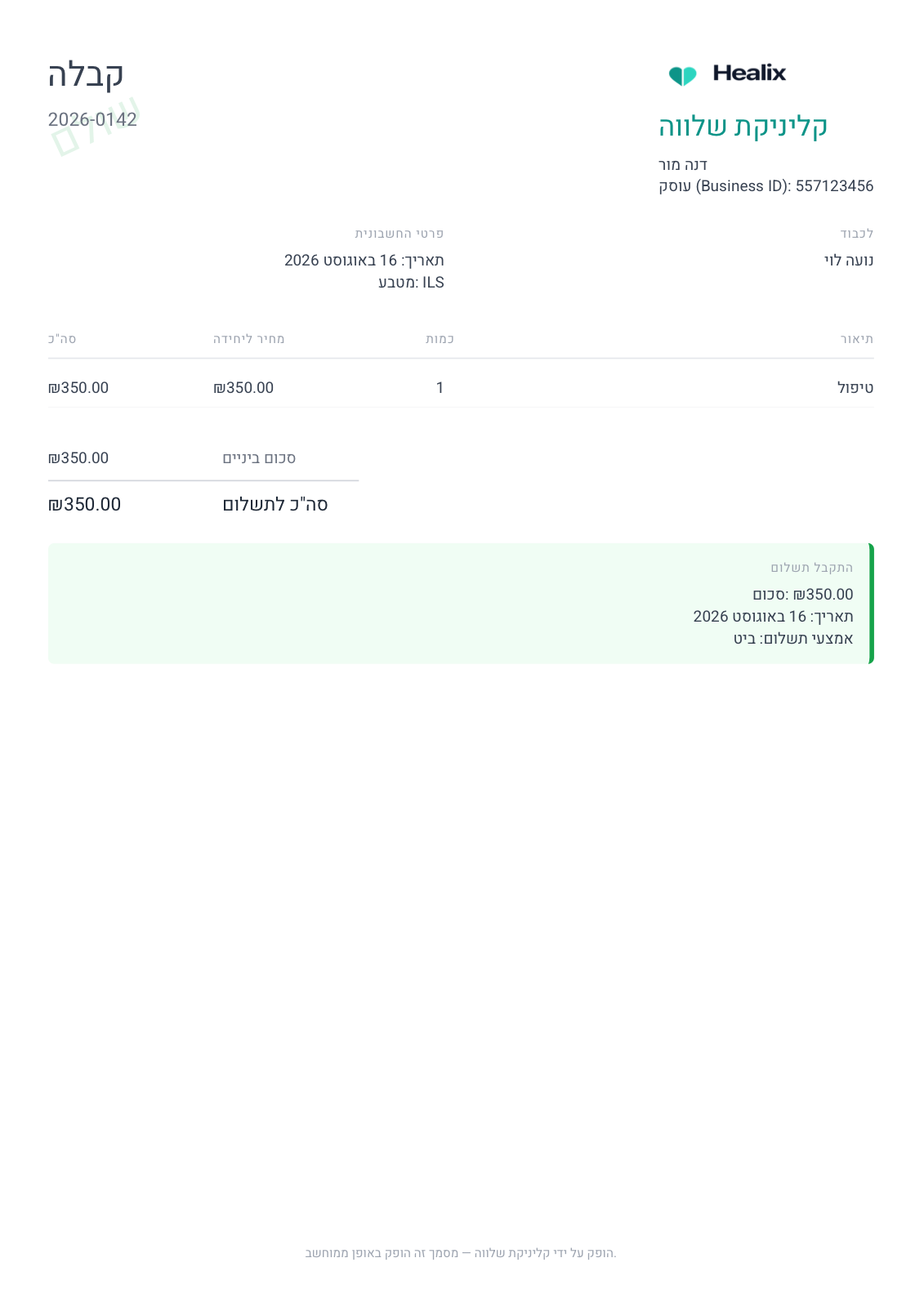
The document language follows the patient. For Hebrew-language patients the entire document is in Hebrew with a right-to-left layout — titled חשבונית before payment and קבלה once paid (English documents are titled INVOICE / RECEIPT). Amounts keep Western numerals and the real ₪ symbol. For custom-recipient invoices, the language is whatever you chose on the form. You can see both variants of your branding anytime via Settings → Invoice branding → Preview (English) / תצוגה מקדימה (עברית).
9.9 Receipt Email on Mark Paid
When you mark an invoice as Paid, the system automatically sends the patient an email with the receipt PDF attached. You do not need to send it separately. The patient also sees the receipt in their portal.
9.10 Invoice Numbering
Invoice numbers are unique per clinic and generated in sequence. The system uses a collision-safe generator — if two invoices are created simultaneously, they will always receive different numbers. You do not need to manage numbering manually.